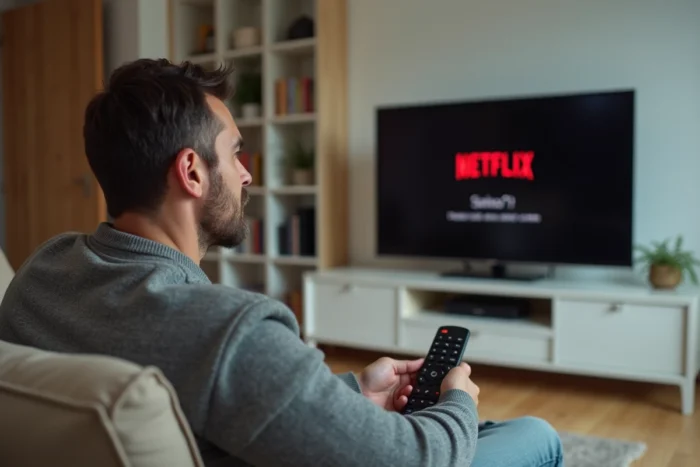
The Free remote control that refuses to operate Netflix or Prime Video while the rest of the Freebox interface responds normally: the problem rarely comes from the remote control itself. In most cases, it’s a signal conflict between the Freebox Player, the television, and the HDMI-CEC protocol that blocks commands on these two specific applications.
HDMI-CEC Conflict Between Freebox Player and Streaming Applications
The CEC protocol allows HDMI-connected devices to send mutual commands. On a Freebox Pop, Delta, or Ultra connected to a Samsung, LG, or Sony television, this mechanism causes a specific behavior: the Netflix or Prime button on the remote activates the HDMI input instead of the application. The Player intercepts the CEC command before the television processes it.
We also observe the opposite case: pressing the Netflix shortcut on the TV remote turns the Freebox on or off without ever launching the application. This CEC ping-pong between two devices each claiming control of the HDMI bus is the primary cause of malfunction on these platforms.
The reliable procedure for diagnosing this conflict follows a strict order, detailed notably on the Geek Flare website with steps adapted to different Freebox models:
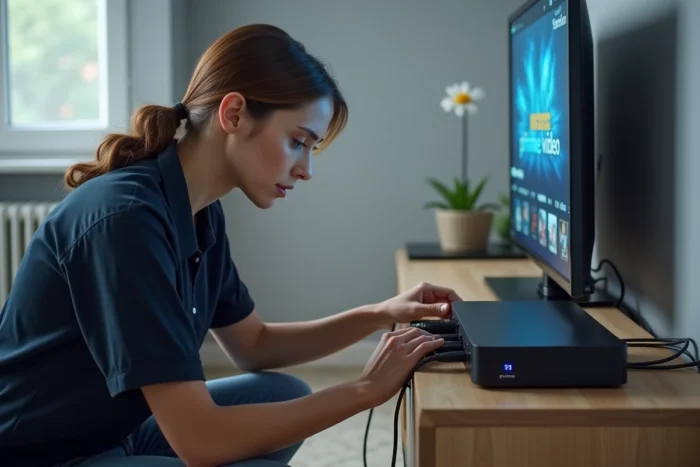
- Unplug all HDMI devices from the television, including the Freebox, then restart the TV alone to reset the internal CEC table.
- Reconnect only the Freebox to the usual HDMI port and check if the Netflix and Prime buttons work again.
- If the problem disappears, reconnect the other devices (soundbar, console, Blu-ray player) one by one to identify the one causing the conflict.
- On the television, access the HDMI-CEC settings (called Anynet+ on Samsung, Simplink on LG, Bravia Sync on Sony) and disable CEC control for the HDMI port of the Freebox if the conflict persists.
This last point has a side effect: the TV remote will no longer be able to control the volume or power of the Freebox. But the application buttons will regain their normal function.
Freebox Pop and Ultra Remote: Bluetooth Pairing and Application Link Loss
The remotes for Freebox Pop and Ultra use Bluetooth to communicate with the Player. Unlike older infrared remotes (Revolution, Crystal), they do not require a direct line of sight. However, a loss of Bluetooth pairing only cuts off the application shortcuts while allowing basic navigation to function via the built-in infrared backup signal.
This behavior misleads many users: the remote seems to work since the directional arrows and the OK button respond. But Netflix, Prime Video, and other application shortcuts go exclusively through the Bluetooth channel.
Re-pairing on Freebox Pop
Press and hold the button located on the back of the remote for several seconds until the light blinks. The Player automatically detects the remote and restarts the pairing procedure. After pairing, access the Player settings, then the Remote menu, and initiate a complete recalibration.
Re-pairing on Freebox Ultra
The procedure differs slightly: unplug the Ultra Player, remove the batteries from the remote for about thirty seconds, replace them, then plug the Player back in. The Bluetooth detection sequence restarts on startup. An outdated Player firmware may block Bluetooth reconnection, so we recommend checking the version in the system settings before any manipulation.
Freebox Delta and Apple TV: Limitations of the Custom Free Remote
The Freebox Delta uses an Apple TV 4K Player with a specific Free remote, different from Apple’s Siri Remote. This custom remote does not have a touchpad, which poses a concrete problem on Netflix and Prime Video.
These two applications utilize touch gestures (swipe, long press) for playback control: fast forward, rewind, navigating through episodes. The Free Delta remote, limited to physical buttons, does not transmit these gestures to the applications that expect them. The result: inability to fast forward or rewind in a program, directional buttons ineffective in certain menus.
Two solutions exist:
- Use the Apple TV Remote app on iPhone or iPad, which emulates the touchpad and restores all navigation functionalities in Netflix and Prime Video.
- Obtain a compatible Apple Siri Remote, which natively supports the gestures required by these applications.
We recommend the first option to quickly diagnose whether the problem comes from the remote or another factor (Netflix account, application update, network).
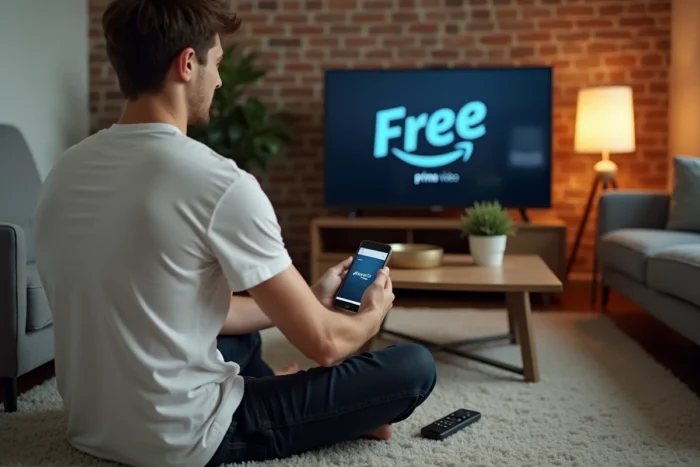
Free App as a Backup Remote for Netflix and Prime Video
When no hardware manipulation resolves the issue, the Freebox app available on smartphones effectively replaces the physical remote. It connects to the Player via the local Wi-Fi network and sends commands directly, without going through Bluetooth or infrared.
On Freebox Pop and Ultra, the app replicates all functions, including the Netflix and Prime Video application shortcuts. On Freebox Delta (Apple TV Player), it does not replace touch gestures. In this case, the Apple TV Remote app takes over.
This workaround also helps isolate the source of the problem. If Netflix and Prime Video work normally via the smartphone app but not with the physical remote, the diagnosis points to a hardware defect in the remote (faulty buttons, dead Bluetooth module) rather than a software or CEC conflict. Replacing the remote with Free is then the only definitive solution, a process possible through the subscriber area or in a Free store.