
The Messages app on iPhone does not handle underlining in the same way depending on the protocol used to send the text. Since iOS 18, an inline formatting menu in iMessage allows for underlining to be applied directly in the conversation bubble. However, this native formatting does not work in all cases, and the distinction between iMessage and regular SMS entirely dictates what is possible.
Native iMessage Formatting: What Happens Technically Under iOS 18
Before iOS 18, underlining a word in Messages was a workaround. Formatting options were limited to full-screen effects (balloons, confetti) and Tapback reactions, which do not affect the text itself.
iOS 18 introduced a Text Effects menu accessible directly in the input field. This menu offers four formatting options: bold, italic, underline, and strikethrough. Underlining can be applied word by word or to a selection of text, and it appears in the message bubble on both the sender’s and recipient’s sides.
To access it, simply tap the Text Effects button (dedicated icon above the keyboard), then select the “Underline” option before typing the text. The other method is to write the message, select the relevant passage, and then apply the formatting from the same menu. Knowing how to underline a word in an SMS on iPhone therefore first involves mastering this formatting panel, which remains discreet in the interface.
The rendering relies on rich text specific to the iMessage protocol. This point has a direct consequence on compatibility, detailed in the next section.
Underlining a Word in SMS or RCS: The Limitation of Green Bubbles
The underlining formatting only works in iMessage conversations (blue bubbles). As soon as the message goes through SMS, MMS, or RCS (green bubbles), the formatting disappears. The recipient receives the plain text, without any underlining.
This restriction comes from the protocol itself. SMS and MMS carry text without style metadata. RCS, which Apple adopted more recently, also does not support rich formatting as iMessage does.
In practical terms, this means that underlining a word only works between two Apple devices running iOS 18 or later. If the recipient is using an iPhone running iOS 17, an Android phone, or if the conversation switches to SMS due to lack of internet connection, the underlining will not be transmitted.
How to Check the Type of Conversation
The color of the bubble remains the most reliable indicator. Blue: active iMessage, formatting possible. Green: SMS, MMS, or RCS protocol, formatting impossible. The input field also displays “iMessage” or “Text Message” depending on the case.
Alternatives for Underlining Text Outside of iMessage
When the conversation does not go through iMessage, two approaches allow for simulating a visual emphasis on the text.
Unicode Text Generators
Websites and applications generate underlined text using special Unicode characters. The principle: each letter is combined with an underlining diacritic character (U+0332). The result resembles underlined text and can be copied and pasted into any application, including Messages in SMS mode.
- The rendering varies depending on the recipient’s phone. Some devices or fonts do not display these combined characters correctly.
- The generated text is not “real” typographic underlining. Search engines or screen readers (accessibility) do not recognize it as such.
- This method also works in WhatsApp, Telegram, or any text field accepting Unicode, making it versatile despite its visual limitations.
Using the Notes App as an Intermediary
The Apple Notes app allows for text formatting (bold, italic, underline) and then copying it. The formatting is sometimes retained when pasted into certain applications, but Messages in SMS mode systematically removes the formatting at the time of sending. This method only works to prepare text intended for an iMessage conversation or another compatible app.
Steps to Underline a Word in Messages on iPhone
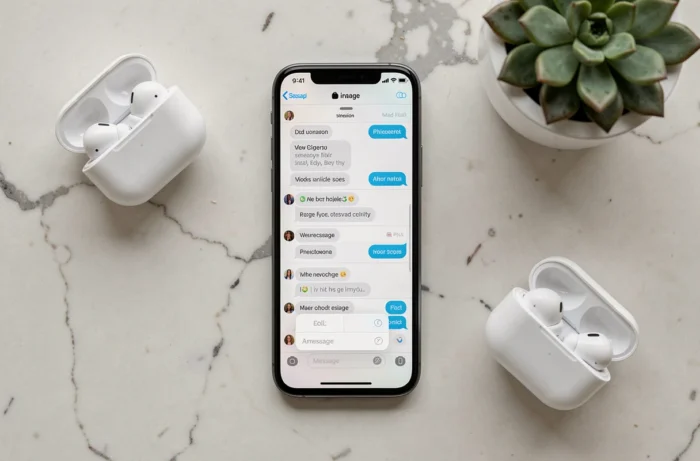
The complete procedure, on an iPhone running iOS 18 or later, in an iMessage conversation:
- Open the Messages app and access an iMessage conversation (blue bubble) or create a new one.
- Tap the Text Effects button (icon above the keyboard, to the left of the input field). Select “Underline” from the formatting options.
- Type the word or phrase to underline, then tap “Underline” again to disable the formatting and continue with normal text.
- To underline a word already typed: press and hold on the word, adjust the selection with the handles, then apply “Underline” from the Text Effects menu.
- Tap the Send button. The underlining appears in the bubble on both the sender’s and recipient’s sides.
Formatting can be combined: a word can be both bold and underlined, or italic and underlined. The animation effects (shake, explosion) introduced with iOS 18 also overlay the formatting.
WhatsApp and Other Messaging Apps: A Different Formatting
WhatsApp does not offer a native underline button. Bold is achieved by enclosing the text with asterisks (*word*), italic with underscores (_word_), and strikethrough with tildes (~word~). Underlining does not exist in WhatsApp syntax.
Telegram offers more formatting options through its text selection menu, but underlining remains absent in the standard mobile version. In the desktop version, a keyboard shortcut allows for underlining text, with no guarantee of identical rendering on mobile.
Native underlining remains a feature exclusive to iMessage under iOS 18. Other major messaging apps have not integrated it to date, making the Unicode approach the only cross-platform option, despite sometimes approximate rendering depending on devices.